ℹ️ Living Documentation: Project Memory is where your team captures lessons learned, key updates, and important decisions that form your project's knowledge base.
Workflow
How project context becomes long-term memory
1
Capture event
Record a decision, update, milestone, or blocker.
2
Choose type
Label the entry so the timeline stays organized.
3
Add evidence
Attach notes, files, links, and team context.
4
Publish timeline
Save the item into the shared project history.
5
Search later
Filter, browse, and revisit old project knowledge.
6
Feed AI Brain
Use memory entries as context for better answers.
What is Project Memory?
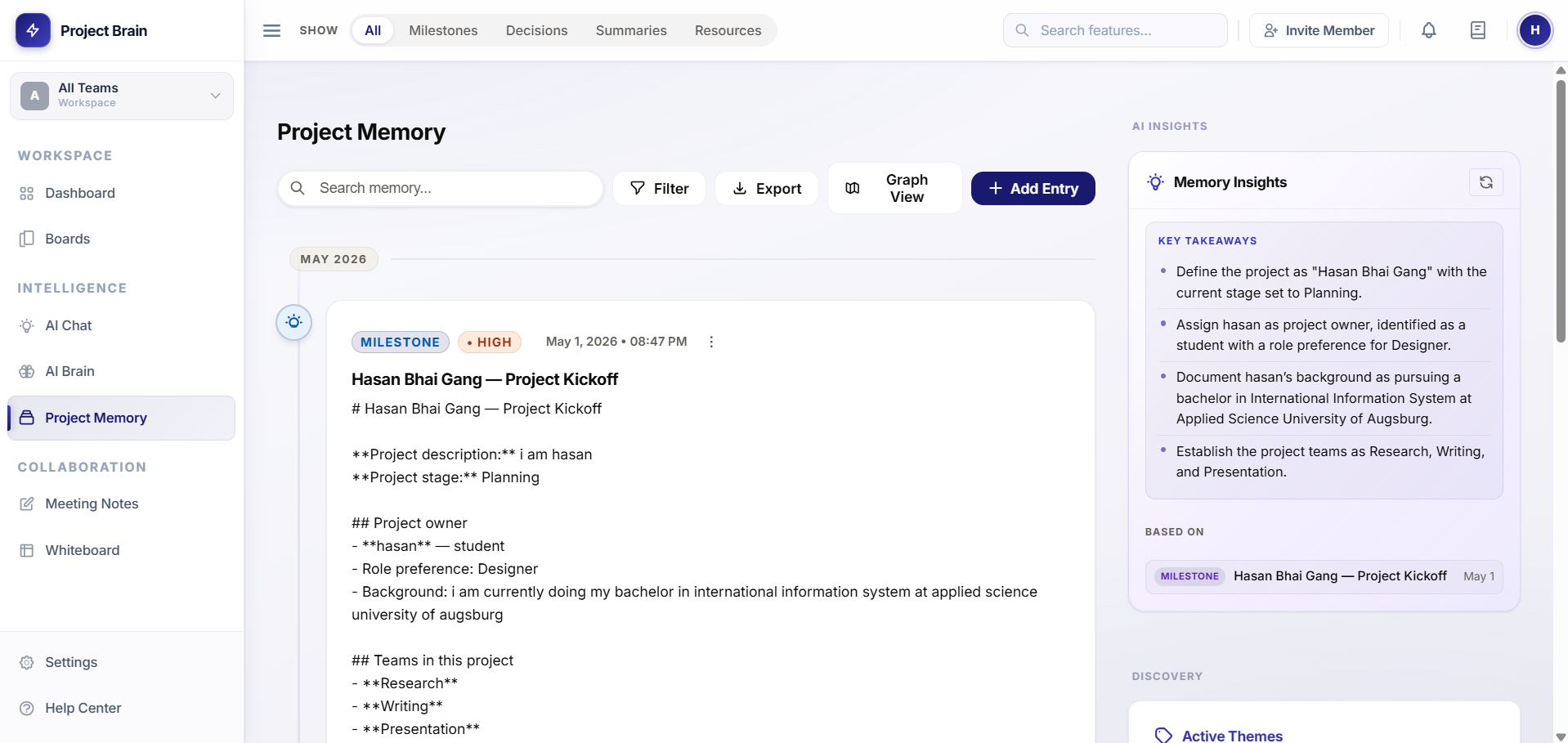
Project Memory is your project's living documentation and timeline. It helps you:
- Document important updates and milestones
- Capture decisions and their rationale
- Maintain a historical timeline of your project
- Share knowledge with current and future team members
- Build context for your project's AI Brain
Creating Timeline Entries
Adding an Entry
- Click Project Memory in the left sidebar
- Click + New Entry
- Choose the entry type (Update, Decision, Milestone, etc.)
- Add a title and description
- Attach relevant documents or links
- Click Save
Entry Types
- Update: Regular project progress and status updates
- Decision: Important decisions made and their context
- Milestone: Major achievements or project phases completed
- Lesson Learned: Key insights and best practices
- Risk/Issue: Problems encountered and how they were resolved
- General Note: Any other important information
Timeline Features
Visual Timeline
See your project's history at a glance:
- Chronological view of all entries
- Color-coded by entry type
- Filter by team member or entry type
- Search through your timeline
Entry Details
Each entry can include:
- Title and rich-text description
- Author and creation date
- Attached files and links
- Related team members or projects
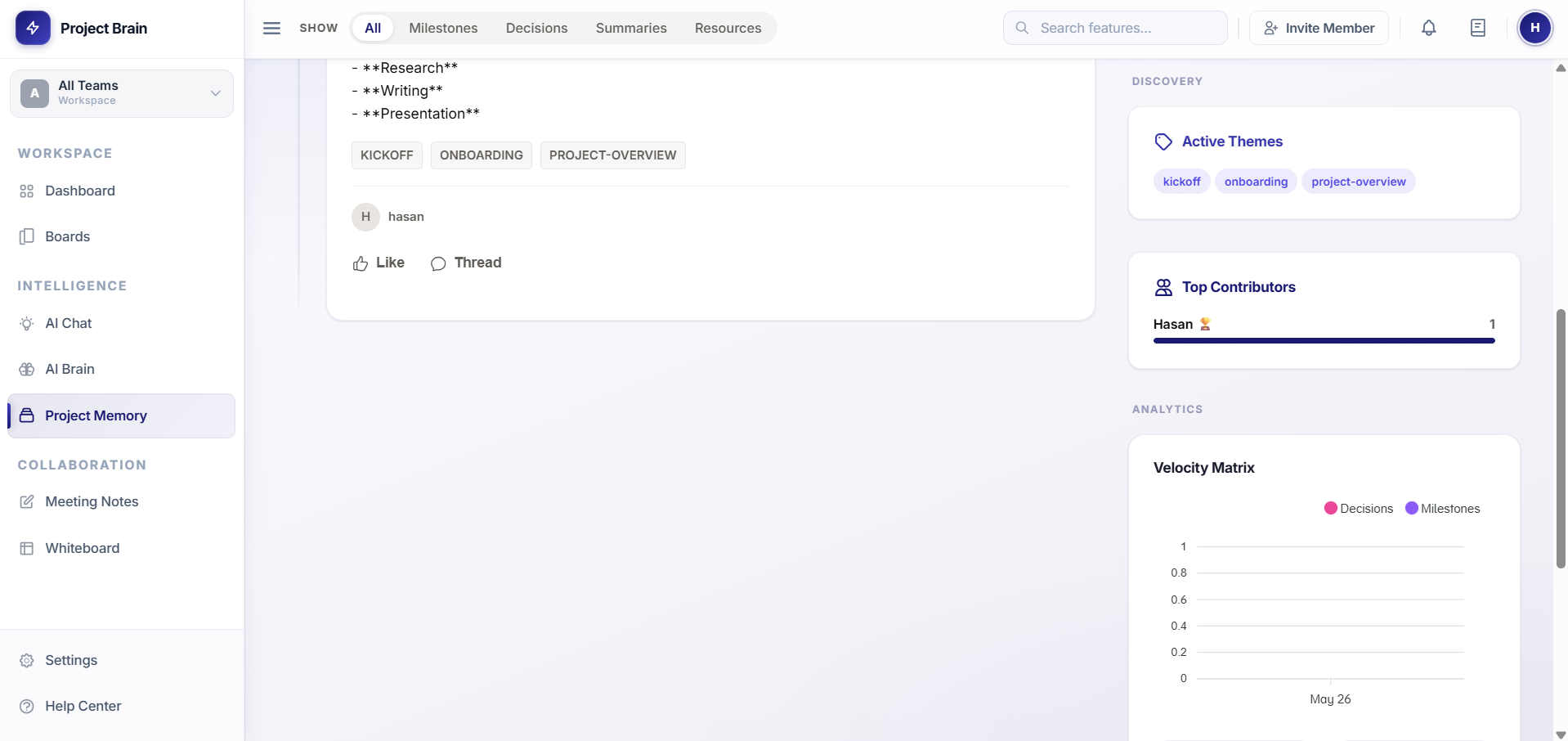
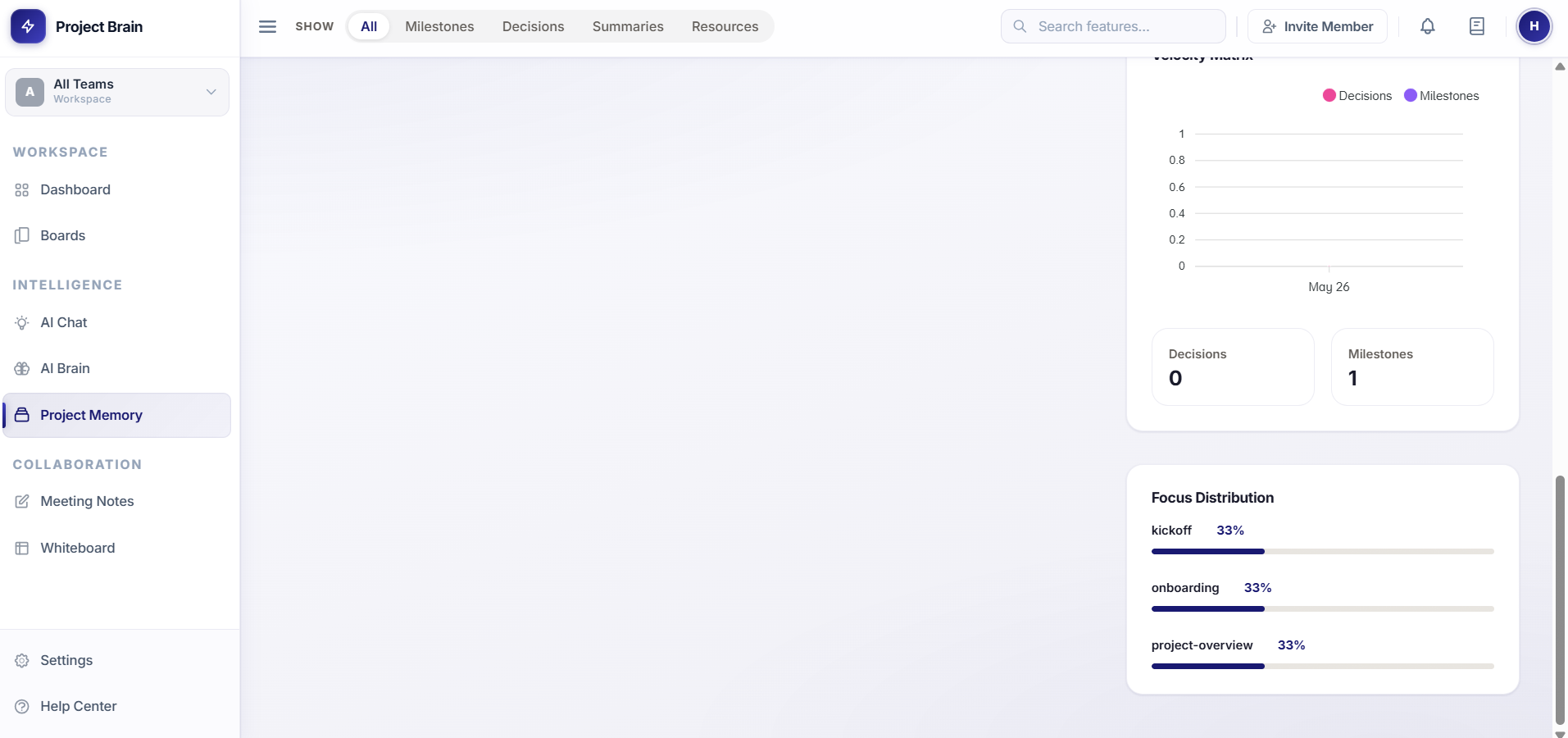
- Tags for categorization
Comments & Collaboration
- Add comments to timeline entries
- Discuss context and implications
- Thread discussions on specific entries
- Tag team members for input
Document Management
Uploading Documents
Attach important files to your timeline:
- Click + Upload or drag files into an entry
- Select document(s) from your computer
- Add descriptions for context
- Documents are automatically indexed for AI search
Document Organization
- Organize by folder or tag
- Search by filename or content
- Version tracking for edited documents
- Share documents with specific team members
Document Versions
Track changes to documents:
- Upload new versions of existing documents
- View version history
- Compare versions side-by-side
- Revert to previous versions if needed
Knowledge Base Building
Structuring Information
Organize your knowledge effectively:
- Use consistent naming and tagging
- Link related entries together
- Create categories for different project areas
- Maintain a decision registry
Search & Discovery
Find information quickly:
- Full-text search across all entries
- Filter by date, type, or author
- Save common searches
- Ask the AI Brain about past decisions
Sharing Knowledge
- Export timeline summaries
- Share specific entries with stakeholders
- Create onboarding guides from entries
- Generate project reports
Using AI Brain with Project Memory
Your timeline entries are automatically available to the AI Brain:
- Ask questions about past decisions and their rationale
- Get context when the AI suggests actions
- Search your project history via AI
- Generate summaries from multiple entries
Best Practices
- Be consistent: Use the same entry types and structure
- Update regularly: Add entries weekly, not just at project end
- Provide context: Explain the "why" behind decisions and updates
- Link related items: Create connections between entries
- Tag appropriately: Use tags to categorize and find information later
- Involve the team: Encourage team members to contribute
- Clean up regularly: Archive old or outdated entries