ℹ️ Smart Note Taking: Capture meeting discussions, decisions, and action items. Use AI transcription and automatic summarization to save time.
Workflow
From live meeting to searchable follow-up
1
Create note
Start a note for the meeting or project update.
2
Record or write
Capture discussion, decisions, and open questions.
3
Transcribe
Let AI turn audio into usable meeting text.
4
Summarize
Generate key points, decisions, and risks.
5
Assign actions
Turn commitments into owned next steps.
6
Share and search
Keep the note available for the team and AI Brain.
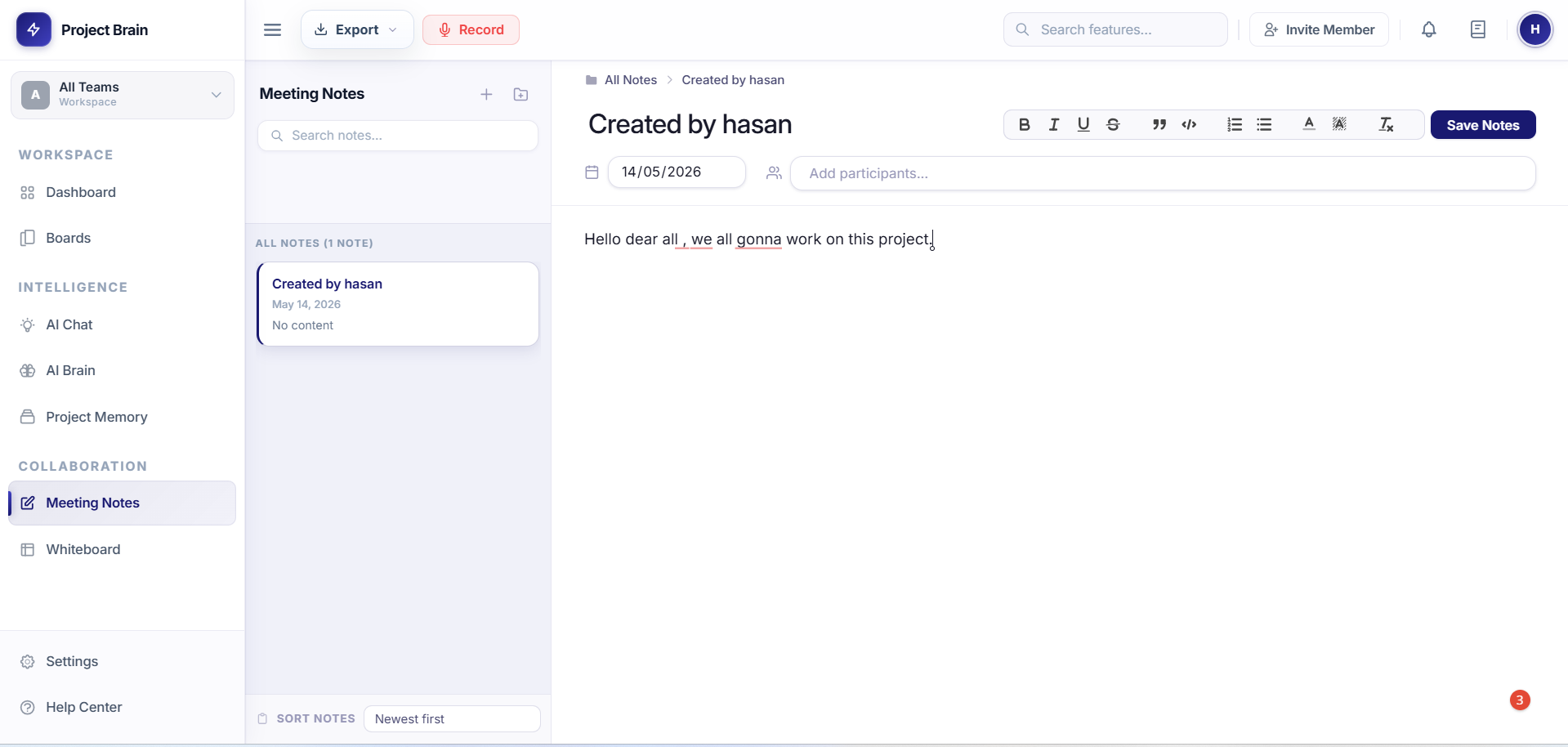
What are Meeting Notes?
Meeting Notes help you:
- Capture discussions and key points in real-time
- Record action items and decisions
- Share meeting summaries with team members
- Reference historical discussions
- Track follow-ups and commitments
Creating Meeting Notes
Starting a New Note
- Click Meeting Notes in the left sidebar
- Click + New Note
- Enter the meeting title and date
- Add attendees from your team
- Click Create
Editing Your Notes
Once created, you can:
- Add rich text formatting (bold, italics, lists)
- Insert links and attachments
- Tag team members for action items
- Add timestamps for important sections
Key Features
Audio Recording & Transcription
You can record your meeting and get automatic transcription:
- Click the Record button while in a note
- Discuss your meeting normally
- Click Stop Recording when done
- AI will transcribe the audio automatically
- Edit the transcription as needed
AI Summarization
Automatically summarize your notes:
- Click Summarize button
- AI generates a concise summary of key points
- Customize the summary length
- Share summary with team members
Action Items
Organize and track decisions and tasks:
- Tag items with @ActionItem or use the action item button
- Assign responsible team members
- Set due dates for follow-ups
- Create calendar tasks automatically
Decision Log
Capture important decisions made in meetings:
- Use Decision: prefix or decision button
- Decisions are automatically highlighted
- Easy to search and reference later
Organizing Notes
Note Folders
Organize your notes into folders:
- Create folders for different project phases or meeting types
- Move notes between folders
- Pin important folders for quick access
Tagging and Search
Tag your notes for easy discovery:
- Add tags when creating notes
- Search by tag, date, or attendee
- Filter notes by project or team
Team Collaboration
Sharing Notes
Share meeting notes with your team:
- Open the note you want to share
- Click Share
- Select team members or make it team-wide
- Choose view or edit permissions
Comments and Discussion
Collaborate on notes:
- Add comments to specific sections
- Use @mentions to get attention
- Track changes and versions
Notifications
Team members are notified when:
- Notes are shared with them
- They're @mentioned in notes
- Due dates for their action items approach
Best Practices
- Capture decisions: Always note who decided what and why
- Be specific with action items: Include owner, deadline, and context
- Share promptly: Send notes within 24 hours of the meeting
- Link to related items: Connect notes to relevant tasks or projects
- Archive old notes: Keep your active notes organized
- Use consistent formatting: Help your team quickly scan notes