Back
Boards
Organize and manage your work with kanban boards and task management
ℹ️ Flexible Organization: Create multiple boards for different projects, workflows, or teams, and customize them to match your process.
Workflow
How work moves through a board
1
Create board
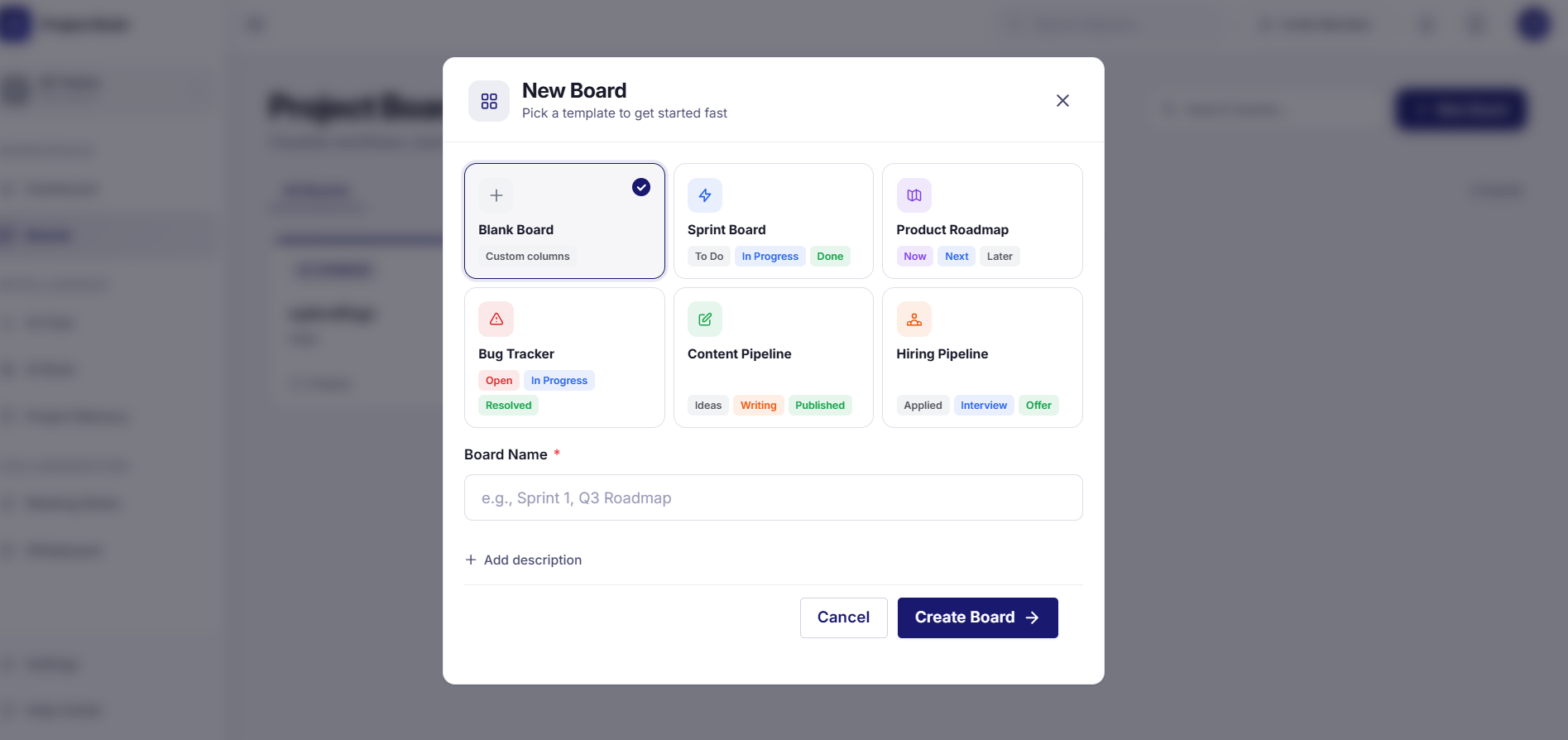
Start with a blank board or template.
2
Set columns
Define the stages your team actually uses.
3
Add cards
Break work into clear tasks or deliverables.
4
Assign owners
Add assignees, due dates, priority, and details.
5
Move work
Drag cards as the status changes.
6
Review and clean
Check progress, finish tasks, and archive old work.
What are Boards?
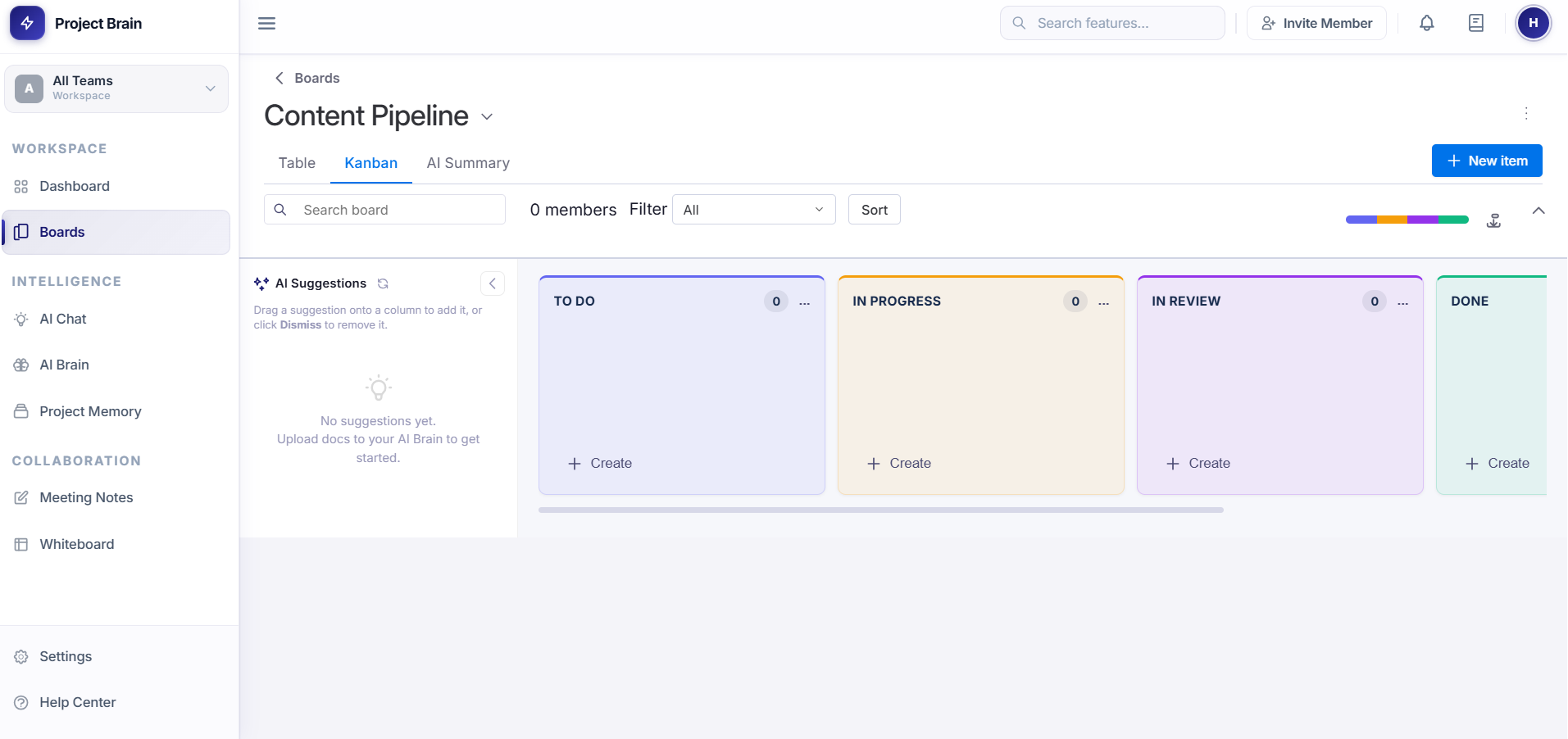
Boards are visual workspaces where you can organize tasks and work items using a kanban-style interface.
- Multiple columns representing different stages (To Do, In Progress, Done)
- Cards representing individual tasks or work items
- Team member assignments and due dates
- Custom metadata and labels
Creating and Managing Boards
Creating a New Board
- Click Boards in the left sidebar
- Click the New Board button
- Enter a board name and description
- Choose a template or start blank
- Click Create Board
Working with Cards
Adding Cards
- Click + Add Card in any column
- Enter the card title
- Add description, assignee, and due date
- Click Create
Moving Cards
Drag and drop cards between columns to update their status. Cards automatically save when moved.
Tips & Best Practices
- Keep columns focused: Limit to 5-7 columns for better visibility
- Use consistent naming: Help your team understand the workflow easily
- Set clear due dates: Help prioritize and track progress
- Regularly review: Use boards in your team meetings
- Archive completed items: Keep your board clean and focused